
To update user permissions and access levels in the Screen application:
1. Click the Settings icon to the left of your profile icon.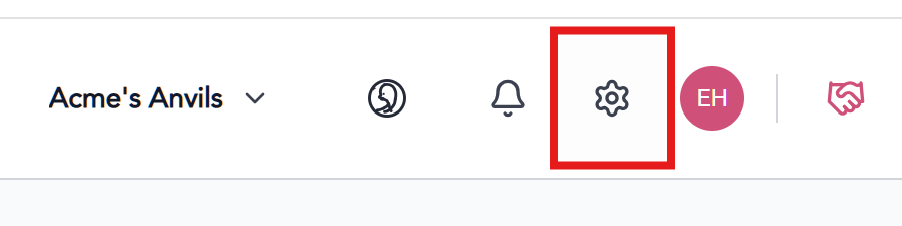
2. Click the Users & Access link on the left sidebar.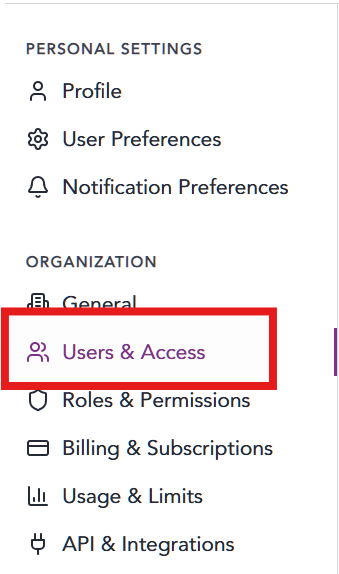
3. Find the user in the user list. Hover over the Actions column for the user row.
4. To edit a user, click the pencil icon.
5. Edit user details as necessary. Do not change the email address.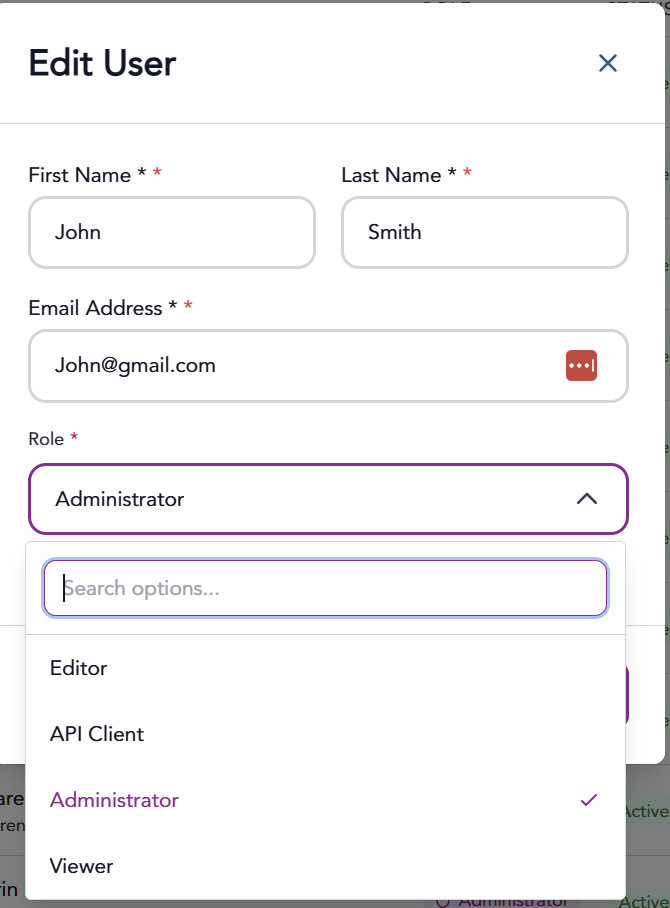
6. If you check or uncheck the Active button, this user will not be able to access the system.

Be sure to click the Update User to save all changes!
NOTE: The application will automatically assign a user “Editor” group permissions.
To add, edit and create new roles, visit this Solutions Article.
https://support.trabex.io/support/solutions/articles/12000108848-setting-roles-permissions-compose
The information provided on this website does not, and is not intended to, constitute legal advice; instead, all information, content, and materials available on this site are for general informational purposes only.