
1. Click the Settings icon to the left of your profile icon.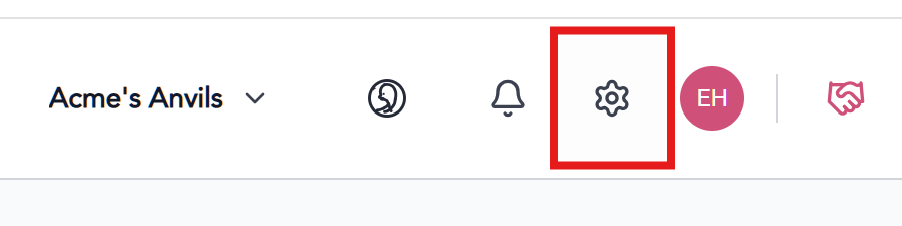
2. Click the Screen application under Products & Features on the left sidebar menu.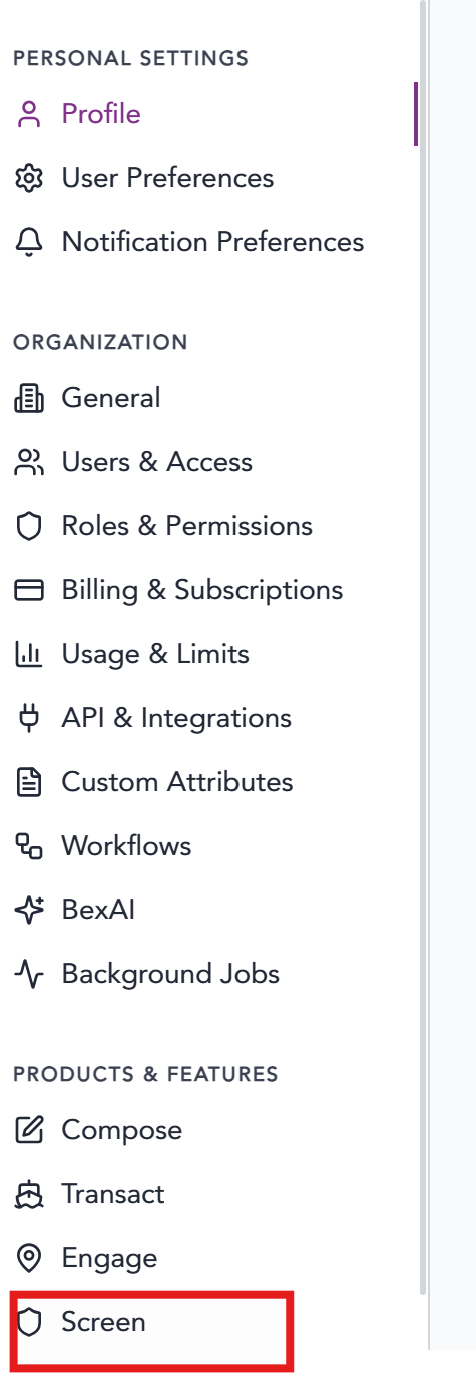
3. On the Screen settings page, find the Match Confidence Threshold area.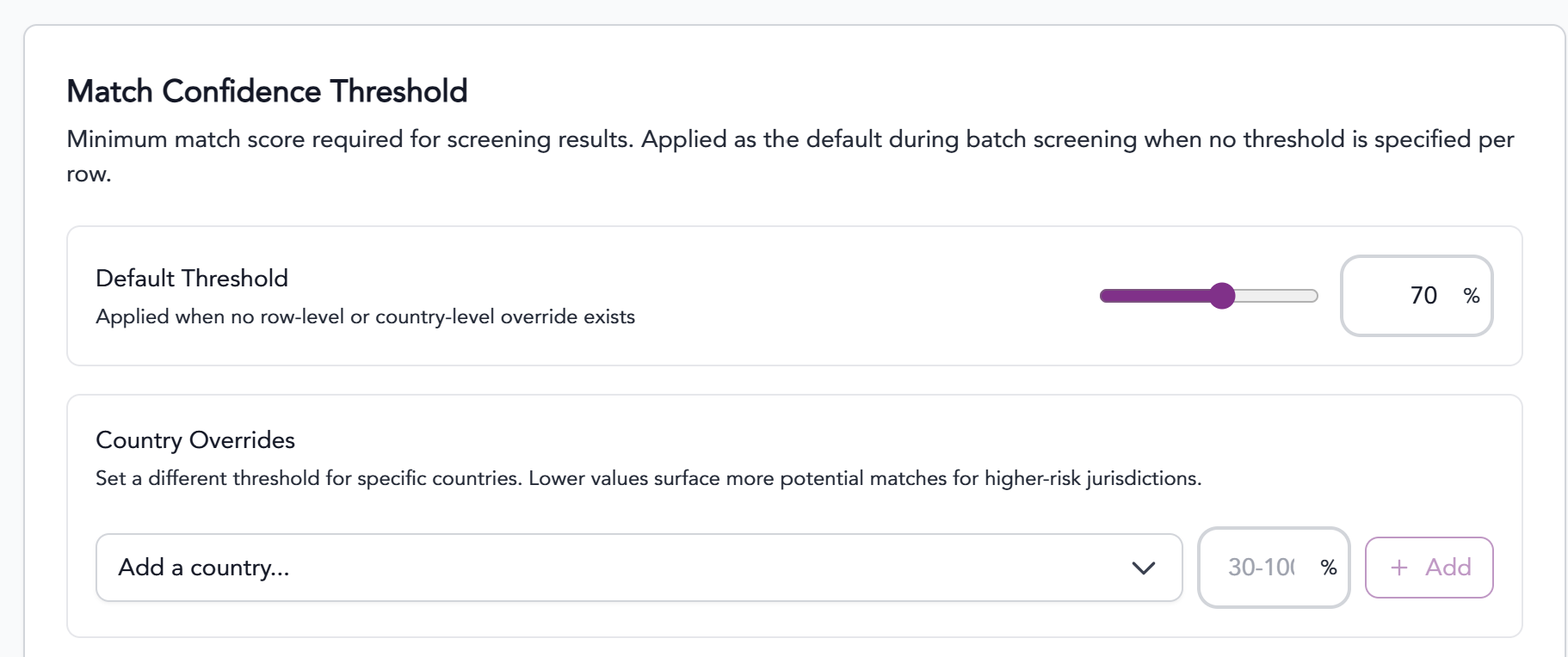
4. The default threshold is 70%. Change this by adjusting the slider to the desired percentage.
Match Confidence Thresholds can also be set at a country level.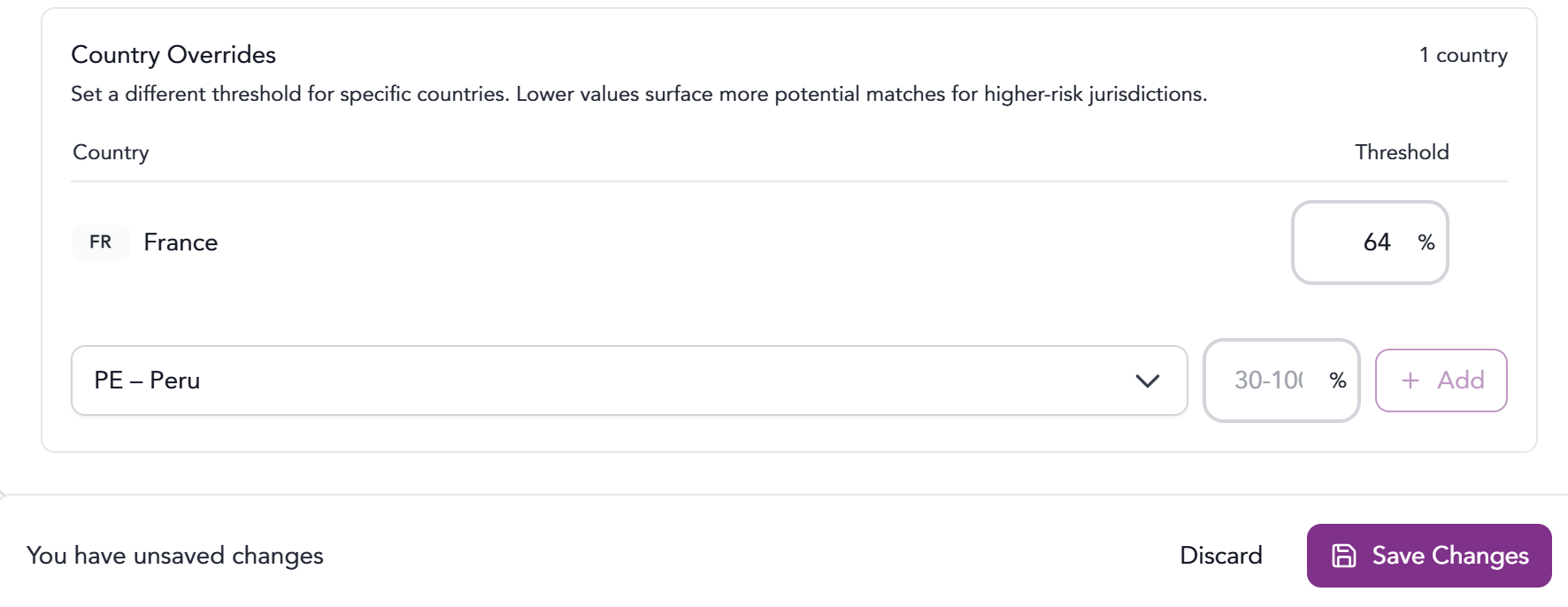
Select the Country from drop down menu.
Enter the desired threshold value.
Click the + Add button
Repeat this for each country you'd like to set.
BE SURE TO CLICK SAVE!
Removing a Similarity Threshold
A user may elect to remove a Similarity Threshold by hovering over the white area to the right of the threshold value. A red trashcan icon will appear and once clicked, the country will be removed from the custom threshold.
Adjusting a Similarity Threshold
From the list of countries with set similarity thresholds, find the country you'd like to adjust.
Use the up/down arrows to adjust.
Follow this step for each country you'd like to adjustBE SURE TO CLICK SAVE!
The information provided on this website does not, and is not intended to, constitute legal advice; instead, all information, content, and materials available on this site are for general informational purposes only.